> For the complete documentation index, see [llms.txt](https://docs.raybot.app/start/llms.txt). Markdown versions of documentation pages are available by appending `.md` to page URLs; this page is available as [Markdown](https://docs.raybot.app/start/telegram/interface-navigation/groups.md).
# Groups
The Groups section allows you to connect RayBot to both Telegram groups and Discord groups.
### 🔑 **Core principle**
* Group management is done through any RayBot that is **not** in those groups but with which you interact directly.
* Such a bot acts as a central control panel: from it, you can add new groups, connect Discord, or create dedicated bots for specific tasks.
{% hint style="info" %}
⚡ **Additionally:** transaction filters can also be configured via the web version — use the command `/web -> Manage`.
{% endhint %}
***
### 📊 **Plan limits**
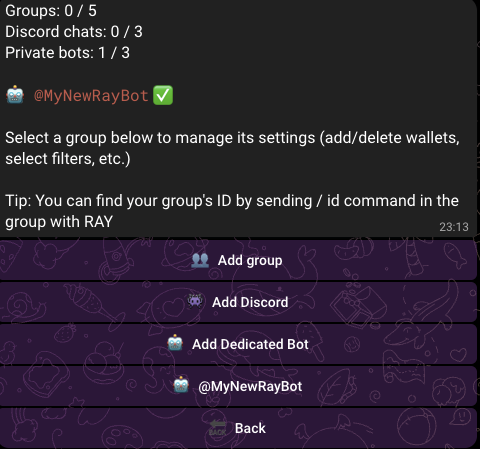
At the top of the **Groups** menu, your current limits are displayed:
* Number of connected Telegram groups.
* Number of available Discord chats.
* Number of private bots you can use.
📍Example:
`Groups: 3 / 5` means you already have 3 groups connected out of 5 available.
The menu shows your current usage and remaining limit without needing to open separate plan settings.
***
### ⚙️ **Group Management**
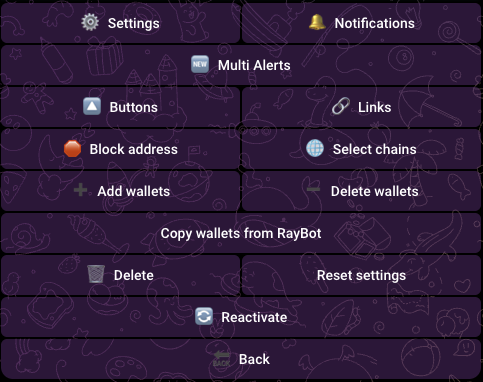
For each selected group, the following functions are available:
➕ **Add / remove wallets (Wallets)** — manage the list of tracked addresses.
🔔 **Notification and settings** — enable/disable alerts, choose transaction filters *(more details in* [***Settings***](/start/telegram/interface-navigation/settings.md)*)*.
🔼 **Manage buttons (Buttons) and links (Links)** — quick access to trading actions and analytics *(more details in* [***Settings***](/start/telegram/interface-navigation/settings.md)*)*.
🛡️ **Spam protection** — group repeated trades from the same wallet into one summary alert. Only the group admin can change it *(more details in* [***Settings***](/start/telegram/interface-navigation/settings.md)*)*.
🌐 **Select networks (Chains)** — restrict notifications to specific blockchains.
⛔ **Block addresses** — exclude certain addresses from monitoring.
🆕 **Multi Wallet**— configure multi-notifications to receive signals from multiple wallets at once *(more details in* [*Multi Wallet*](/start/telegram/interface-navigation/signals/multi-wallet.md)*)*.
***
## 👥 Add group
To start working with Telegram groups, you need to add RayBot to the chosen chat.
#### **👉 Quick method (Groups & Channels)**
* Add RayBot to your group.
* Send the command: `/id` - you’ll receive your group ID in response
* In the bot menu, select **Enter Group ID**.
* Send the ID number.
* Make sure RayBot has already been added to the group.
#### **👉** Alternative method (only for Groups):
• Add RAY to your group
• Send `/start` in the group
• Send `/activate` in the group
{% hint style="success" %}
⚡ Both methods allow you to link the group to your RayBot and start managing it through the **Groups** menu.
{% endhint %}
> *🎥 Video example — Watch how to add RayBot to Telegram in under 1 minute*
{% @guideflow/guideflow-embed requestedUrl="" %}
***
### 📜 **Commands available in a group**
After adding RayBot to a group, the following commands become available for admins and users:
* `/add ADDRESS` — add a new wallet.
* `/delete ADDRESS` — remove a wallet.
* `/show` — display all added wallets.
* `/topic` — set the chat topic for notifications.
* `/mute` / `/unmute` — disable or enable notifications.
* `/allowadmins` — allow only admins to manage wallets.
* `/allowall` — allow all members to manage wallets.
* `/switch` — switch RayBot in this group.
* `/settings` — open the settings menu.
* `/block ADDRESS` / `/unblock ADDRESS` — block or unblock a wallet.
* `/dp TOKEN` — check Dex payment for a token.
* `/scan_on` / `/scan_off` — enable or disable auto-scanning of tokens.
* `/multipreset` — assigns a Multi Wallet preset to a group topic.
* `/multipresets` — opens an info window with Multi Wallet preset details.
{% hint style="info" %}
**Important:**\
Although these commands are available inside the group, the main management of RayBot is always done through another bot that is not a member of the group.\
`/start → Main Menu → Groups → [Your group]`
{% endhint %}
***
## ➕ Adding RayBot to a Multi-Topic Group (Telegram)
RayBot can operate not only in regular Telegram groups but also in **multi-topic groups**,\
where discussions are divided into separate topics.
This setup is especially useful if you want to **split notification flows** or **track different wallet lists** in separate topics.
{% hint style="info" %}
This feature is currently under active development — some functions may be temporarily unavailable.
{% endhint %}
### 🧩 How It Works
A single RayBot can be active across multiple topics within one group,\
sending notifications to each one — depending on which wallet lists you’ve linked.
#### 📘 **Example 1: Using one bot across multiple** topics
You have three topics— **General**, **Alpha**, and **Beta**,\
and three wallet lists — **A**, **B**, **C**:
* Thread **General** → List **A**
* Thread **Alpha** → List **B**
* Thread **Beta** → List **C**
Now, the same bot will send notifications from each wallet list to the corresponding thread.
{% hint style="success" %}
💡 **Tip:**\
If you want to separate **buy** and **sell** notifications, use the **`/add2`** command.\
It allows you to duplicate wallets and track different types of activity in separate topics.
{% endhint %}
#### 📘 Example 2: Using multiple bots
If you’re using two (or more) RayBots, the logic stays the same.\
The only difference — when adding wallets, you need to specify which bot you’re adding them to.
📌 **Command format:**
```xojo
/add@RayBot_handle Address Name
Address Name
Address Name
```
This format directs wallet additions **to the correct bot**,\
allowing you to distribute lists between different channels or topics.
{% hint style="info" %}
This describes wallet-level topic routing.\
Multi Wallet Presets use a separate preset-based routing layer (explained below).
{% endhint %}
### 👥 Multi Wallet Presets → Separate Topics
When working with **multi-topic Telegram groups**, you can route **different Multi Wallet presets to different topics** within the same chat.
This allows you to run **multiple Multi Wallet strategies simultaneously**, each with its own logic and a dedicated topic for alerts.
#### 🔍 How It Works
* A single Telegram group can contain **multiple topics**
* Each **Multi Wallet preset** can be linked to a **specific topic**
* All alerts generated by that preset will be sent **only to the selected topic**
* Other presets can be linked to **other topics** within the same group
This is useful for separating:
* strategies
* networks
* wallet sets
* signal logic
without creating multiple groups.
### 🧩 How to Set Up Multi Wallet Presets for Topics
1️⃣ Open RayBot in **Direct**\
`/start → Groups → Your Group → Add Preset`
2️⃣ Create the required number of **Multi Wallet presets** and configure the settings for each one
3️⃣ To link a preset to a specific topic, use the command:
```
/multipreset
```
* `` — the Multi Wallet preset number
* `` — the ID of the topic where alerts should be sent
If `` is **not provided**, the **current topic** will be used.
> 💡 **How to get the `topic_id`:**
>
> * use the **`/id`** command inside the target topic
> * or run **`/multipresets`** directly in the desired topic —\
> the bot will open an info window showing:
> * **Current Topic ID**
> * **IDs of all available Multi Wallet presets**
📘 Example
Your group has three topics:
* **General** (ID: 0)
* **Alpha** (ID: 1)
* **Beta** (ID: 2)
And two Multi Wallet presets:
* **Preset 1** — SOL wallets
* **Preset 2** — EVM wallets
#### Preset routing:
```
/multipreset 1 1
```
→ **Preset 1** alerts are sent to **Alpha**
```
/multipreset 2 2
```
→ **Preset 2** alerts are sent to **Beta**
Each preset works **independently** and sends alerts **only to its assigned topic**.
{% hint style="info" %}
#### ⚠️ Important
* Preset-to-topic routing works **only in Telegram groups**
* Wallets remain **local to the group and its topics**
* **One preset → one topic**
* **Multiple presets can be assigned to the same topic**
{% endhint %}
***
#### 🪙 Token Management
Adding tokens in **multi-topic groups** works the same way as adding wallets.\
To add a token, use the command:
```
/add
```
If you’re using multiple RayBots, specify the bot explicitly in the command:
```
/add@RayBot_handle
```
Token configuration — including visibility, filters, and notifications — is available **only through the Web version of RayBot**,\
where you can fine-tune how tokens are displayed and managed.
#### ⚙️ Managing the Bot Within Topics
RayBot provides several system commands for managing topics:
* **/topic** — displays the ID (number) of the current thread
* **/topicmove\_0** — moves RayBot notifications to the selected thread
{% hint style="info" %}
📌 **Note:**\
If you move the bot to a thread where it’s already active,\
wallet lists from both topics will **merge**.
{% endhint %}
#### ⚙️ Managing Wallets Within Topics
General group management is done directly through Telegram:\
**/start → 👾 Groups → select your channel → Settings / Notifications / Multi Wallet / Buttons / etc.**
These settings apply **to all topics and all wallets** within the group.
If you want to configure wallets for a **specific thread**,\
open the **Web version of RayBot**, select the desired thread, and adjust the settings there.
#### 🧩 How to Add RayBot to a Multi-Topic Group
1️⃣ Open your desired RayBot from the list using **/bots**\
2️⃣ Tap the bot’s name → **Add to Group or Channel** → select your group\
3️⃣ Open any topic and type **/activate** — this will link RayBot to the group\
4️⃣ In the desired topic, type **/add** and start adding wallets
📌 If you use multiple bots, specify which bot you’re adding wallets to — for example:
```
/add@RayBot_handle Address Name
Address Name
Address Name
Address Name
```
*(Example: **/add\@ray\_quartz\_bot**)*
***
## 👾 **Add Discord**
The **Add Discord** feature lets you connect RayBot to your Discord server and receive notifications directly in the selected channel.
### 🔑 **How to connect RayBot to Discord**
1️⃣ **In Telegram:**
* Go to:\
`/start → Groups → Add Discord`
* Paste the Webhook link into the chat with RayBot.
2️⃣ **In Discord:**
* Open the server where you want to connect the bot.
* Go to **Server Settings**.
* Navigate to **Integrations → Webhooks**.
* Click **Create Webhook** → enter a name and choose the channel where alerts will appear.
* Click **Copy Webhook URL**.
3️⃣ **Final step:**
* Return to the Telegram chat with RayBot and paste the copied Webhook URL.
* The bot will now start sending notifications to the selected channel.
> *🎥 Video example — Watch how to add RayBot to Telegram in under 1 minute*
{% @guideflow/guideflow-embed requestedUrl="" %}
💼 Example use case
* Create a separate Discord channel for trading signals.
* Configure filters so only certain types of notifications appear (e.g., only buys/sells).
* For convenience, you can connect multiple Webhook channels on one server (e.g., one for Swaps, another for NFTs)
{% hint style="warning" %}
⚙️ **Important limitation**\
Managing bots in Discord (adding/removing wallets, configuring filters and notifications) is done exclusively through RayBot in Telegram.\
In Discord channels, the bot functions only as a *notification broadcaster*.
{% endhint %}
***
## 🤖 Add dedicated bot
This option allows you to create your own dedicated bots for specific tasks.
For more details on features and setup, see the separate section — [🤖 **Dedicated Bot**](/start/telegram/interface-navigation/dedicated-bot.md).
---
# Agent Instructions
This documentation is published with GitBook. GitBook is the documentation platform designed so that both humans and AI agents can read, navigate, and reason over technical content effectively. Learn more at gitbook.com.
## Querying This Documentation
If you need additional information that is not directly available in this page, you can query the documentation by asking a question.
Perform an HTTP GET request on the following URL with the `ask` and `goal` query parameters:
```
GET https://docs.raybot.app/start/telegram/interface-navigation/groups.md?ask=&goal=
```
`ask` is the immediate question: it should be specific, self-contained, and written in natural language.
`goal` is what the user is ultimately trying to achieve, the reason they need the answer. Sharing it helps GitBook give you a better, more relevant answer. A goal is most helpful when it describes the outcome the user wants rather than restating the question. For example, with `ask=how do I create an API token`, a goal like `automate deployments from our CI pipeline` lets GitBook tailor the answer to that use case.
The response will contain a direct answer to the question and relevant excerpts and sources from the documentation.
Use this mechanism when the answer is not explicitly present in the current page, you need clarification or additional context, or you want to retrieve related documentation sections.